
AI financial reporting: how to automate the monthly report and the management presentation
 Bruno Díaz
— Digital Marketing and AI Consultant
Bruno Díaz
— Digital Marketing and AI Consultant
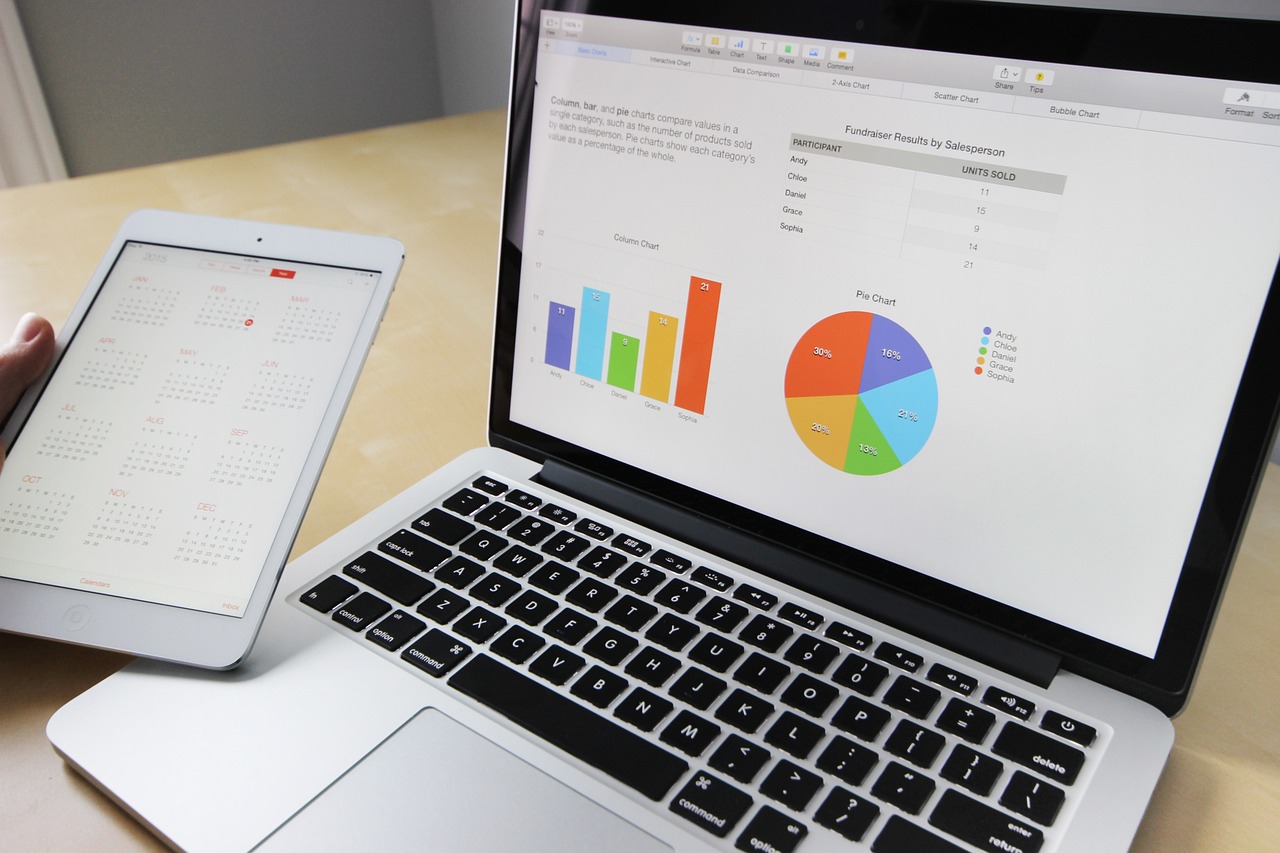
It’s the start of the month, the management meeting is on Monday, and someone in the back office has spent the whole morning copying balances from the accounting software into Excel, pasting charts into PowerPoint and writing up, once again, why sales dropped compared with last month. The job looks the same every month, and almost all of it can be automated.
Here’s how to do it with tools a small business already has or can sign up for without launching an IT project, which part is worth handing to AI, and how much effort each level takes.
Which part of the financial report AI does and which part is still yours
Every internal financial report has three layers, and it pays to separate them before talking about tools. There are the numbers: balances, totals, variances and ratios. There’s the format: the table, the chart or the slide. And there’s the commentary, those few sentences that explain why cash is lower than last quarter or why the margin on a product line has narrowed.
Traditional automation has handled the first two layers for years with formulas, macros, queries and templates; a well-built spreadsheet calculates the same way every month and never gets tired. Generative AI, the kind behind ChatGPT, Claude, Gemini or Copilot, brings what that automation couldn’t do. It reads a table and writes about it in plain language, summarizes, flags what’s out of the ordinary and adjusts the tone to whoever is going to read the report.
That gives you the split that works: the spreadsheet calculates, AI writes and a person signs off. A language model is not a reliable calculator: it gets simple arithmetic wrong now and then, and when it fails, it doesn’t warn you. It returns the wrong figure with the same confidence as the right one. That’s why the numbers never come from AI.
What’s still yours is deciding what gets reviewed each month, interpreting what the text can’t know and putting your name at the bottom. That a major customer paid late because of a one-off issue, or that the jump in expenses is the campaign that was already planned, aren’t things you’ll find in the books, and AI, if you don’t give them to it, makes them up.
Which internal reports to automate first
The useful question is where to start, and the answer is usually the report that repeats most often in the same shape, because that’s where the template pays for itself fastest.
The monthly income statement is the most obvious candidate. It comes out of the accounting system with the same structure every month, gets compared with the previous month and with the same month last year, and the commentary almost always revolves around the same questions: what happened with sales, with the margin and with fixed costs.
Budget vs. actual has one prerequisite: having the budget in a spreadsheet with the same account breakdown as the books. If you have that, AI pulls a lot of weight here, because the heavy lifting is explaining variances, and you can ask it to comment only on those above the threshold you set.
Cash flow depends on bank transactions. If your software already reconciles the bank statement, the export comes from there; if not, it comes from the bank statement itself. The report brings together the balance, outstanding receivables and scheduled payments.
The forecast is the trickiest. AI shouldn’t forecast anything: the forecast is built in the spreadsheet with your own sales and expense assumptions, and what the model does is write up the scenarios you’ve already calculated. Annual accounts, taxes and anything that goes to the bank or the tax authorities stay in the hands of your accountant.
How to automate a financial report with AI, step by step
These four steps work for any of those reports. They’re described in their manual version, which is where you should start, and at the end we explain how to connect them so they run on their own.
Step 1: export the accounting data in the same shape every time
Nearly all the accounting and ERP software small businesses use, from Holded or Sage to A3 or Odoo, exports the trial balance or the general ledger to Excel or CSV. That file is your raw material, and what matters is that it always has the same shape: same columns, same order, same chart of accounts.
The classic mistake is that someone creates a new account halfway through the year and the export changes without anyone noticing, so the formulas keep adding up and leave that account out. Save each export in a fixed folder with the month in the file name, and review the chart of accounts whenever a new account is added. If your software has an API, like Holded or Odoo, you’ll be able to read it directly later on, but to get started the file is enough.
Step 2: calculate the numbers in a spreadsheet anyone can audit
The spreadsheet is organized into three tabs. The data tab holds the export as is: in Excel, with Power Query pointing to the folder from step 1; in Google Sheets, by importing the file. The calculation tab groups the accounts into line items with SUMIFS and works out variances and comparisons, and the summary tab holds the final table, the one management and the AI will see.

Auditable means anyone can click a cell and see where it comes from. No values typed over a formula, no numbers that only the person who built the spreadsheet understands.
It’s the part that takes the most time the first time around and the one you touch least afterward, and if your company already has the spreadsheet, you just need to tidy it up.
Step 3: ask AI for the commentary, not the numbers
The AI gets only the summary tab, already calculated, along with a saved prompt that doesn’t change from month to month. The prompt includes a fixed paragraph of context about the business (what you sell, what your seasonality looks like, which product lines you have) and a set of strict instructions. Here’s an example that works as a starting point:
“You are the finance manager of a small business. I’m giving you this month’s results table, already calculated. Write commentary for management, no more than two paragraphs per line item. Use only the figures that appear in the table; do not calculate new figures. Comment only on variances above the stated threshold. If you don’t know the cause of a variance, write ’cause to be confirmed’ instead of guessing. At the end, list the figures you have cited.”
That last instruction is the one that saves time at review, because it turns the check into matching a list against the table. The sentence about unknown causes prevents the most common flaw in these texts, which is filling the gaps with plausible explanations nobody has confirmed.
Any of the assistants mentioned above will do, and when choosing between them, the plan and its privacy terms matter more than the quality of the commentary.
When the commentary isn’t right, fix the prompt, not that month’s text. If you fix it by hand, the same flaw shows up again next month.
Step 4: review by whoever signs the report
Whoever signs off checks three things before sending it:
- That every figure in the text is in the table. With the list the prompt asked for, it’s a quick check.
- That the causes the text gives are true or flagged as pending.
- That nothing is missing that only the company knows and isn’t in the books.
That last point is what gives the report its value: the AI draft takes care of the mechanical part, and the read on the business comes from someone who knows it.
Risks: made-up causes, confidential data and skipped reviews
Made-up numbers are the most visible risk: a figure in the text that isn’t in the table, or a percentage the model calculated itself. Made-up causes are more dangerous, because there’s no table to check them against. The model sees a pattern, comes up with a reasonable explanation and writes it down without hesitation.
With data, the question is which plan you use and what you do with what you upload. The terms on whether conversations are used to train models vary by provider, plan and settings, so read the ones for yours before you start instead of taking them for granted. And even on a business plan, upload only the summary table. Payroll, customer names, amounts per customer or the full general ledger aren’t needed to write management commentary.
The third risk shows up over time. For a few months the text comes out fine, the review gets shorter, then gets skipped, and one day a report goes out with a cause nobody confirmed. Keep the step 4 review even if the system hasn’t failed in months, and the report is the responsibility of whoever signs it, not of the tool that wrote it.
From the spreadsheet to the monthly meeting deck without copying numbers
At many small businesses the numbers get typed twice, once in Excel and again in the slides, and the second copy is where the errors creep in. The fix is to have the presentation pull from the same spreadsheet as the report.
In PowerPoint, charts and tables pasted with a link from Excel update when the spreadsheet changes, so a presentation template with its links works every month without touching a single number. In Google Slides you work with text placeholders in the template, such as `{{monthly_sales}}`, which an Apps Script or an n8n workflow replaces with the values from the summary tab. The commentary from step 3 goes on its own slide or in the speaker notes.
Copilot in PowerPoint and similar tools generate slides from a document, which is handy for a one-off presentation. For the monthly meeting, we stick with the fixed template, because management always finds the same information in the same place and no number has gone through AI.
What it costs and how much effort it takes: three levels of automation
The first level is the assistant, by hand. You export, paste into the spreadsheet, copy the summary table into the assistant with the saved prompt, and review. The cost is a license for an assistant on a business plan, which many small businesses already pay for other uses, plus the effort of building the spreadsheet, which with a tidy chart of accounts takes a few days.
The second level removes the copy and paste. Power Query loads the export automatically, the presentation is linked to the spreadsheet, and the prompt lives inside the assistant as a custom GPT or a Claude project, with the business context already loaded. Setting it up takes one or two weeks for someone comfortable with Excel, or a small outside job, and if you already have Microsoft 365, it doesn’t require any licenses beyond those of the first level.
The third level is the automated workflow. On the 5th of every month, a workflow in n8n or Make reads the export or the accounting software’s API, updates the spreadsheet, calls the model via API with the prompt, fills in the presentation template and emails the draft to whoever signs off. Here the cost is split between the orchestrator’s plan or server, the model’s API usage, which is small for one report a month, and above all the implementation, which is measured in weeks and needs maintenance whenever the accounting software changes its export.
Before choosing a level, there’s one condition that matters more than budget: that the monthly close is done on time and the same way every month. If the books close late or differently each month, the first thing we recommend is sorting out the close, because the automated workflow would just move the mess around faster. With a quarterly report, the first level is usually enough, and we don’t recommend the third.
If you want to know which level fits your accounting and your reports, get in touch and we’ll go through it with your exports in front of us.
About the author
Bruno Díaz — Digital Marketing and AI Consultant
Digital marketing consultant specializing in SEO, SEM and web projects. I have two masters in AI (the degree and years of hands-on experience with it). Now I apply that experience to create new opportunities and boost productivity for our clients.
Articles by Bruno